Store API keys securely with Secret Manager, understand why bot traffic changes, and more in Profound
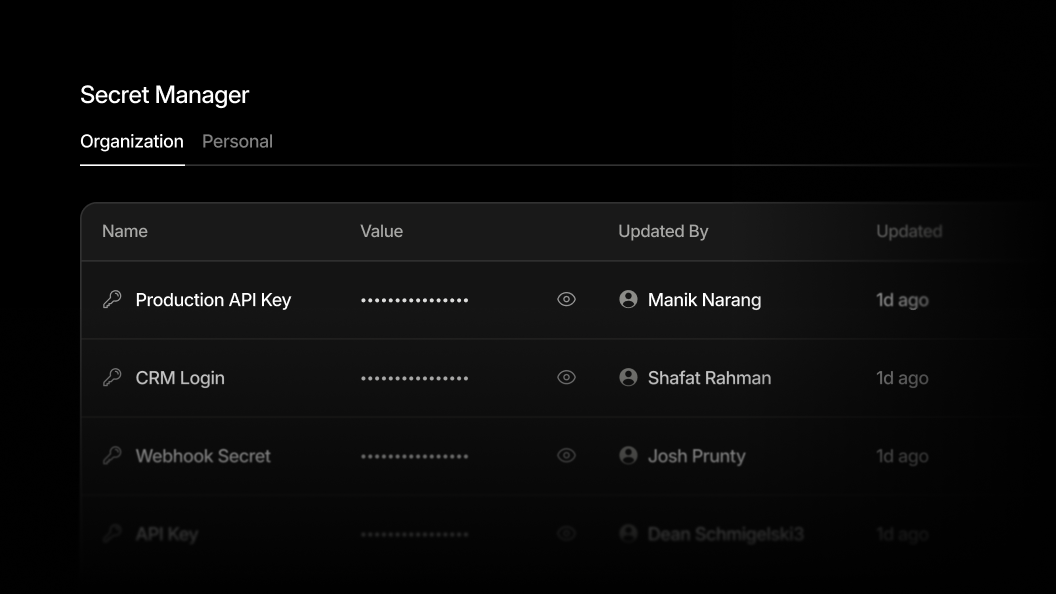
Store API keys once and let your team use them without seeing them
You often need an API key or password to reach tools like your CMS or an internal service. Secret Manager now keeps each key in one secure place in Profound. You save Secrets once and access them whenever you need them. Teammates can use an organization's Secret without seeing it, and when a key changes, you only have to update it in one place.
Give your AI Marketer credentials securely: When a task needs a credential, your AI Marketer asks for it in a secure form. Save it to reuse later, or provide it for that chat only. Before using a saved Secret, your AI Marketer names it and asks for your permission.
Connect Agents and Workflows to your tools: Choose a saved Secret wherever an Agent or Workflow needs an API key. The key never appears in the Agent or Workflow, so anyone who opens it can't read it.
Choose who can use each Secret: Select Organization to let every member use a Secret, or Personal to keep it to yourself. Only the person who saved a Secret can view, edit, or delete it.
Secret Manager is available on all plans. Add your first Secret by opening Settings from the organization name menu and selecting Secret Manager. Learn more about Secret Manager.
Understand why bot traffic changed and note what caused it
A change in bot visits is easier to act on when you know what drove it. You can now ask your AI Marketer to investigate your Agent Analytics data, and you can add an annotation to record what caused the change.
Investigate a spike or dip: Click a day on a bot visits chart, or drag across a date range, and select Investigate. Your AI Marketer analyzes what happened in that period.
Record what changed on your site: Add a chart annotation to mark activities like a site launch, a robots.txt or CDN change, or a content push. Annotations appear on your Agent Analytics charts and on the AI Bot Activity charts in Pages, so the cause sits next to the movement.
Keep control of who edits: Everyone can see annotations, while only those with the "manage Agent Analytics" permission can add, edit, or delete them.
Build a dashboard by describing the report you want
Your AI Marketer can now build fully configurable, shareable views of your Profound data. Head to the “Dashboards” tab, click “Create new,” and tell your AI Marketer what you want to visualize. Select “Build it yourself” if you prefer to set up a dashboard manually.

Ask your AI Marketer why a table or heatmap metric moved
Hover over any metric in an Answer Engine Insights table or heatmap, such as a platform's visibility on a topic in the Visibility Ranking heatmap, and select Investigate when it appears. Your AI Marketer opens to explore what is driving changes in that metric and recommends your next action.
Log in to Profound to explore these product updates, and please share your feedback on how we can improve.