Set north star metrics for Projects, customize Agent notifications, and more in Profound
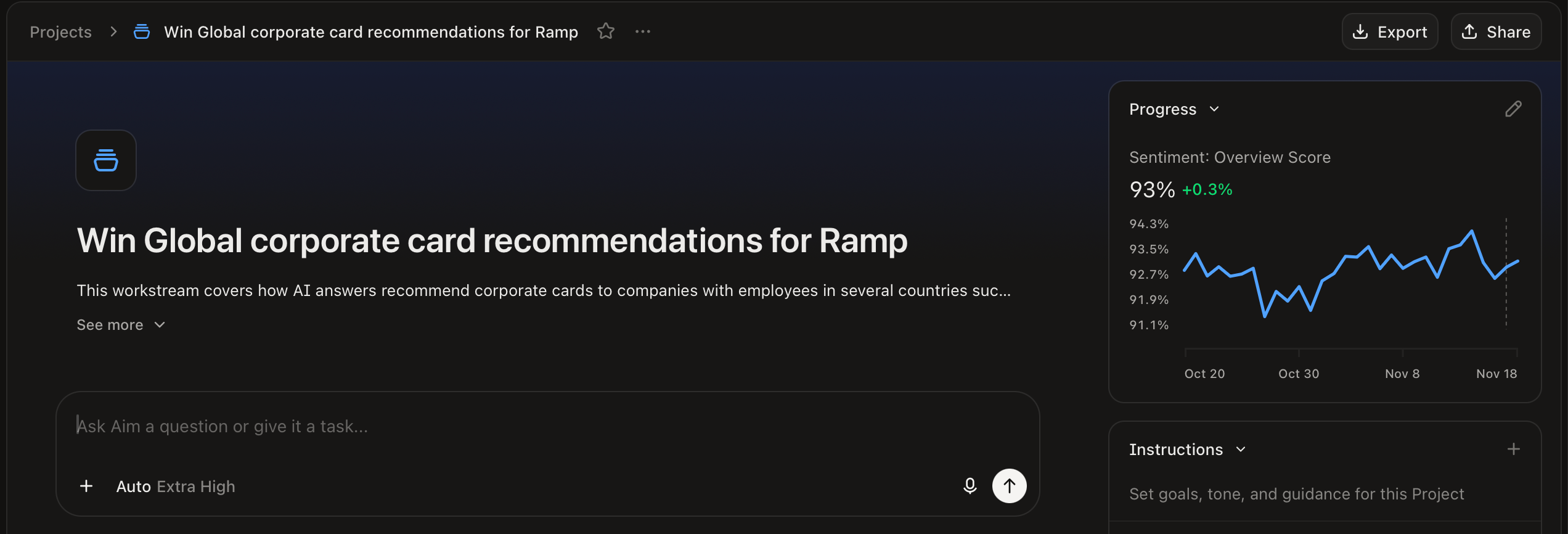
Give each Project a north star metric
You can now give any Project, new or existing, a north star metric, and your AI Marketer will shape that Project's chats and suggestions around moving it forward. For example, if you're launching a new trail shoe, make your visibility for the "trail running shoes" topic the north star.
Manage Projects with Aim: Your AI Marketer can see all your Projects and suggestions. Ask it which Projects need attention this week, or have it start a suggested Project for you.
Get weekly suggestions from your own context: Once a week, your AI Marketer suggests new Projects from your Personal Context and your Project details.
Give new colleagues relevant suggestions from day one: Your AI Marketer now suggests a new colleague's first Projects based on your organization's context and priorities.
Invite colleagues to your Projects during setup: While they set up Profound, new users can invite the colleagues they'll work with on Projects.
To get started, open Projects and add a north star metric to any Project. Learn more about Projects.
Customize your Agent notifications
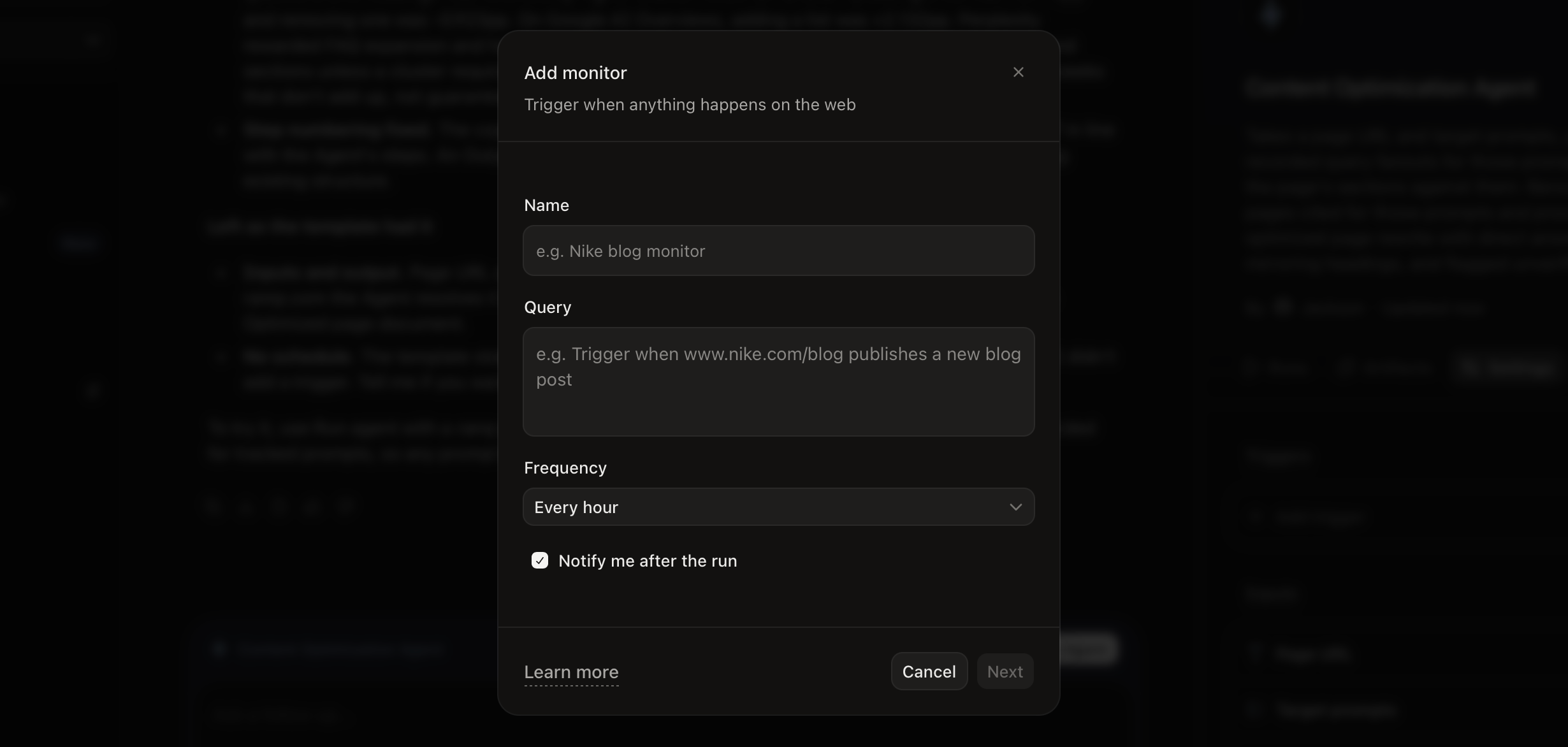
You now choose which Agent runs notify you, one trigger at a time. If selected, you'll get an Inbox, email, and Slack notification. Let a daily visibility check run quietly, and get notified when your weekly competitive brief is ready.
Turn on notifications for a trigger: When setting an Agent trigger, select 'Notify me after the run'.
Ask your AI Marketer to change them: In an Agent's chat, ask your AI Marketer to turn notifications on or off for any of its triggers.
Find all run alerts in Settings: The Notifications page in Settings now has a single 'Agent runs' row that covers every Agent run alert.
To get started, open an Agent on the Agents page and edit one of its triggers. Learn more about triggers in Agents.
Let your AI Marketer fetch your files and deliver finished work
A brief in Google Drive can now become a report in your stakeholders' inboxes without anyone downloading a file. Your AI Marketer and Agents can open files from your connected apps and deliver finished work back to them.
Start from the files your team already has: Ask your AI Marketer to open a file from a connected SharePoint or Google Drive folder, such as last quarter's campaign brief, and build on it in the chat.
Save finished work where your team looks for it: Your AI Marketer and Agents can save the files they create straight to a SharePoint or Google Drive folder.
Send reports from your own inbox: Aim and Agents can now email a file as an attachment from your connected Gmail or Outlook account. Try having an Agent email this month's report to stakeholders as soon as it finishes.
Share files where your team talks: Post a file to a Microsoft Teams channel through your connected Teams account via Profound.
To get started, connect SharePoint, Google Drive, Gmail, Outlook, or Microsoft Teams on the Integrations page in Settings.
Other updates
Upload files up to 1 GB to a Knowledge Base: The size limit for a single file is now 1 GB, up from 100 MB. To get started, open a Knowledge Base and select 'Add Files'.
Refine which Slacks start an Agent: When you set up a Slack trigger you can now choose whether replies in a thread also start the Agent, or if a specific person needs to send it for the Agent to trigger. Learn more about triggers in Agents.
Log in to Profound to explore these product updates, and please share your feedback on how we can improve.